Drag your tasks onto your day, get nudged when it’s time to start, and watch the hours land on every card. TriggerFlo is the to-do list, the planner and the timer — finally talking to each other.
Pay once, own it forever — code
LIFETIME45
is filled in for you, until December 31.
Free for up to 3 projects. Mac, Windows, Linux, iPhone, Android and both watches. Watch the demo
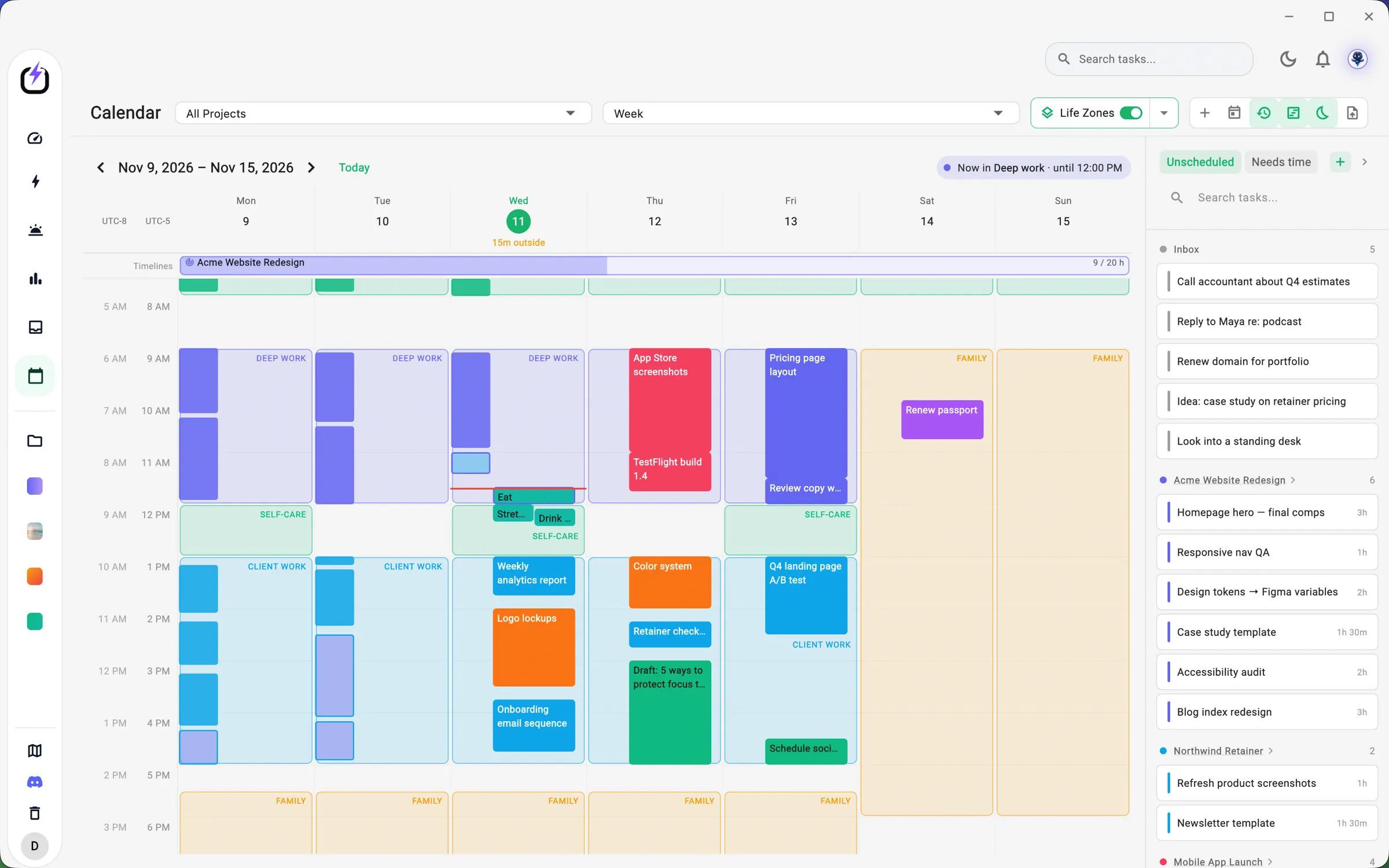
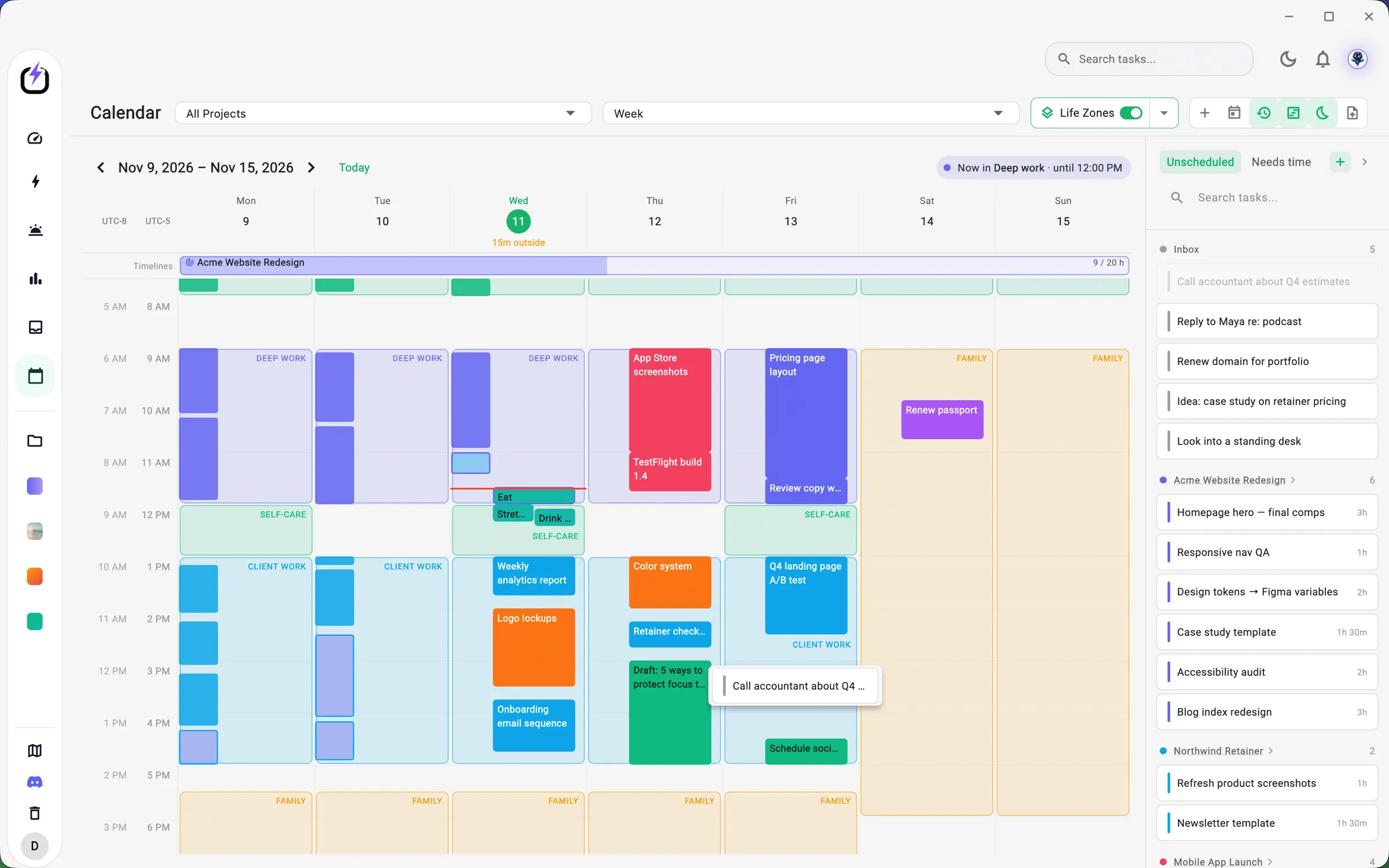
A real week in TriggerFlo: the planner, the timer in the notch, and the day line along the bottom of the screen.
So you run three of them, and copy tasks between them by hand. TriggerFlo answers all three in one place — and adds the one none of them ask.
To-do apps
What needs doing?
Lists and boards that never ask when, or how long.
Calendars
When will I do it?
Time blocks that forget the task once the hour passes.
Time trackers
How long did it take?
A stopwatch that finds out after the fact.
TriggerFlo
…and when should it find me?
What, when and how long live on the same card — and triggers bring it to you at the right moment.
Here’s what that looks like over one day
Daily brief · Routines
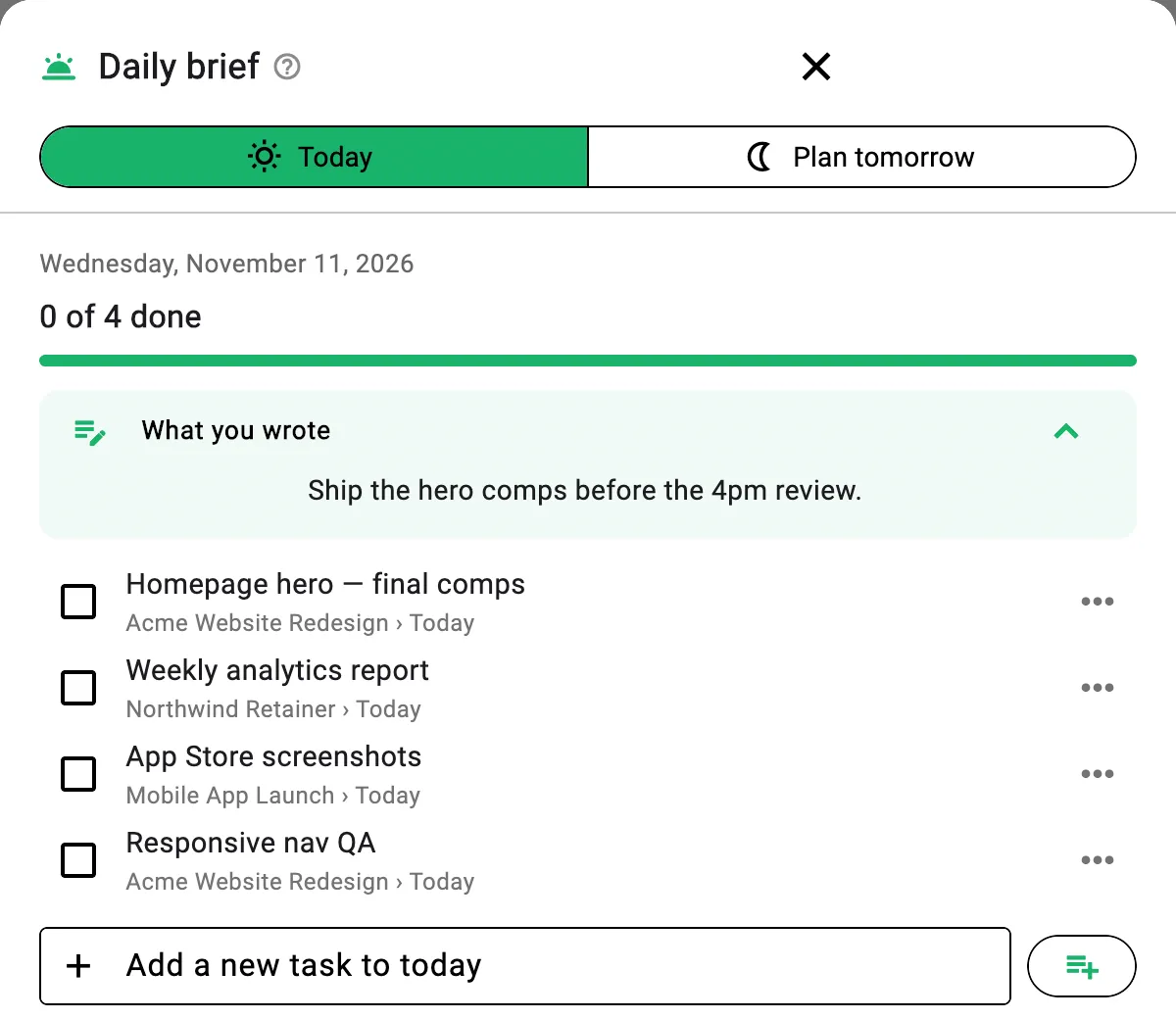
The night before, TriggerFlo asks what tomorrow is for. In the morning it’s waiting: the few tasks you picked, the note you left yourself, and anything unfinished carried over. Then your morning routine plays its steps, one at a time.
Daily planner
Your inbox and every project sit beside the week. Drag a task onto a time and it becomes a block on your calendar — sized by its estimate, coloured by its project, laid over the hours you set aside for each part of your life. Change your mind and drag it again.
Triggers
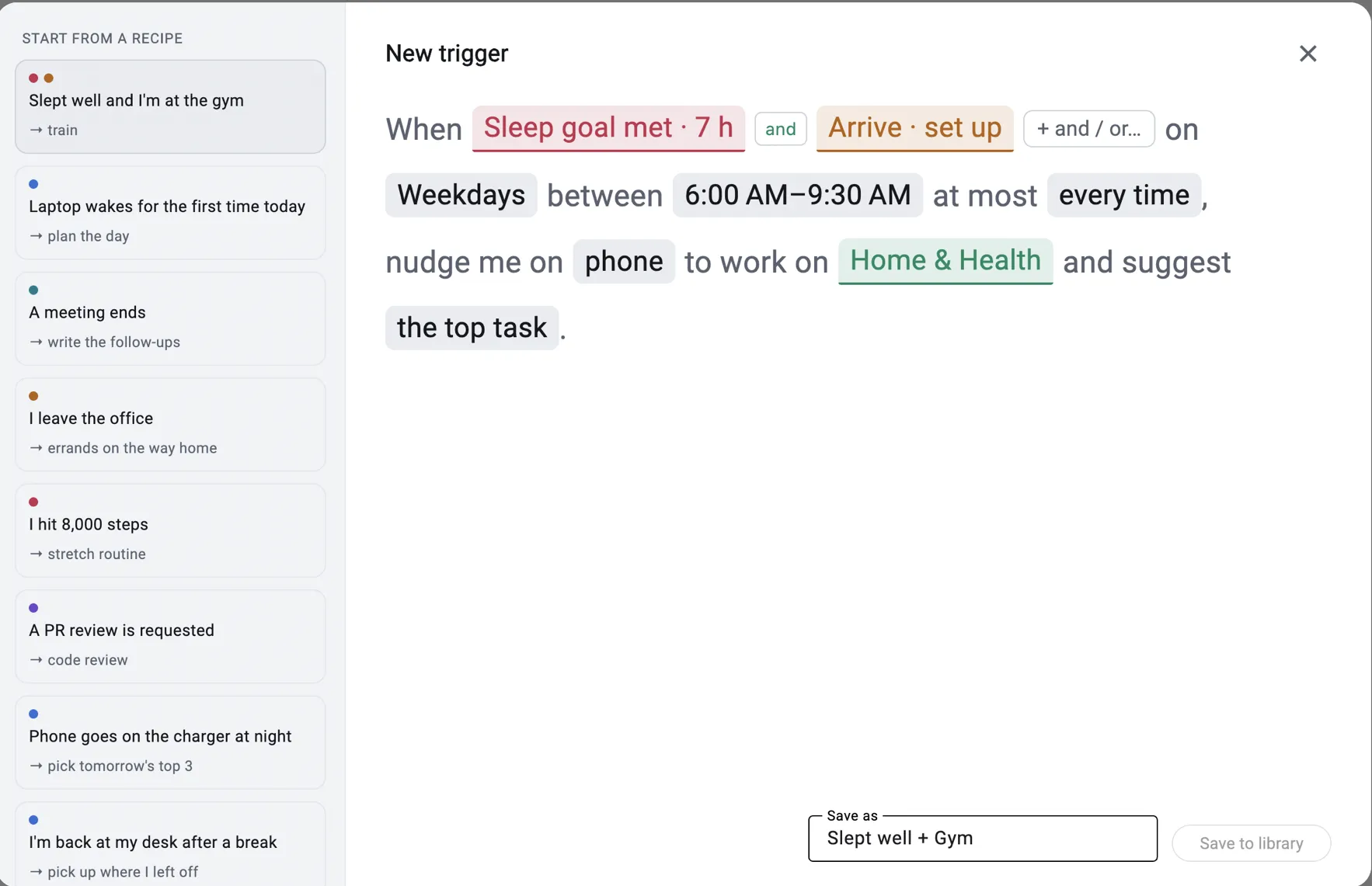
A trigger is a sentence you fill in: when this happens, nudge me about that. “When I slept 7 hours and I arrive at the gym, on a weekday morning, nudge my phone with the top Home & Health task.” Stack conditions with and/or, limit them to a window, and pick which device speaks up.
Start a trigger from
3 running at once on Free, unlimited on Pro.
Floating timer
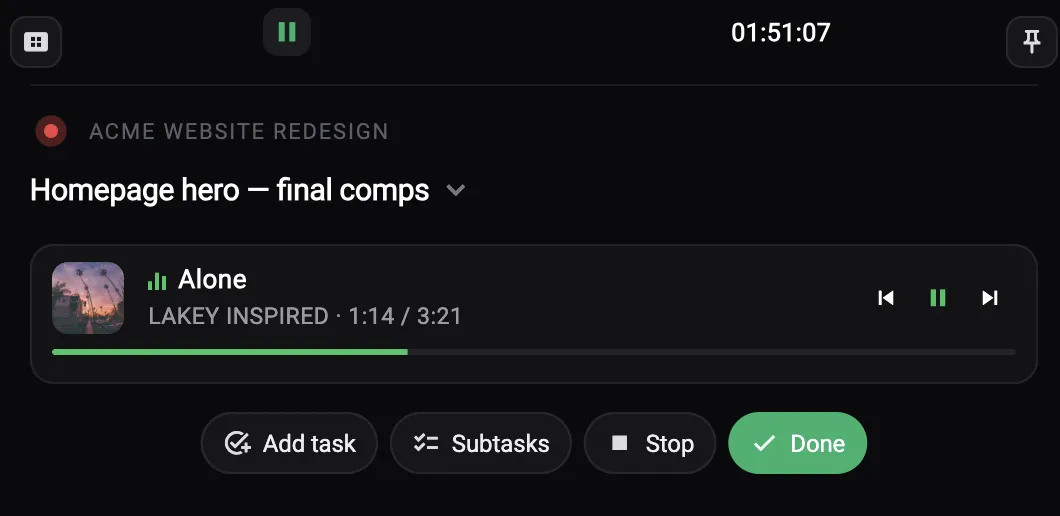
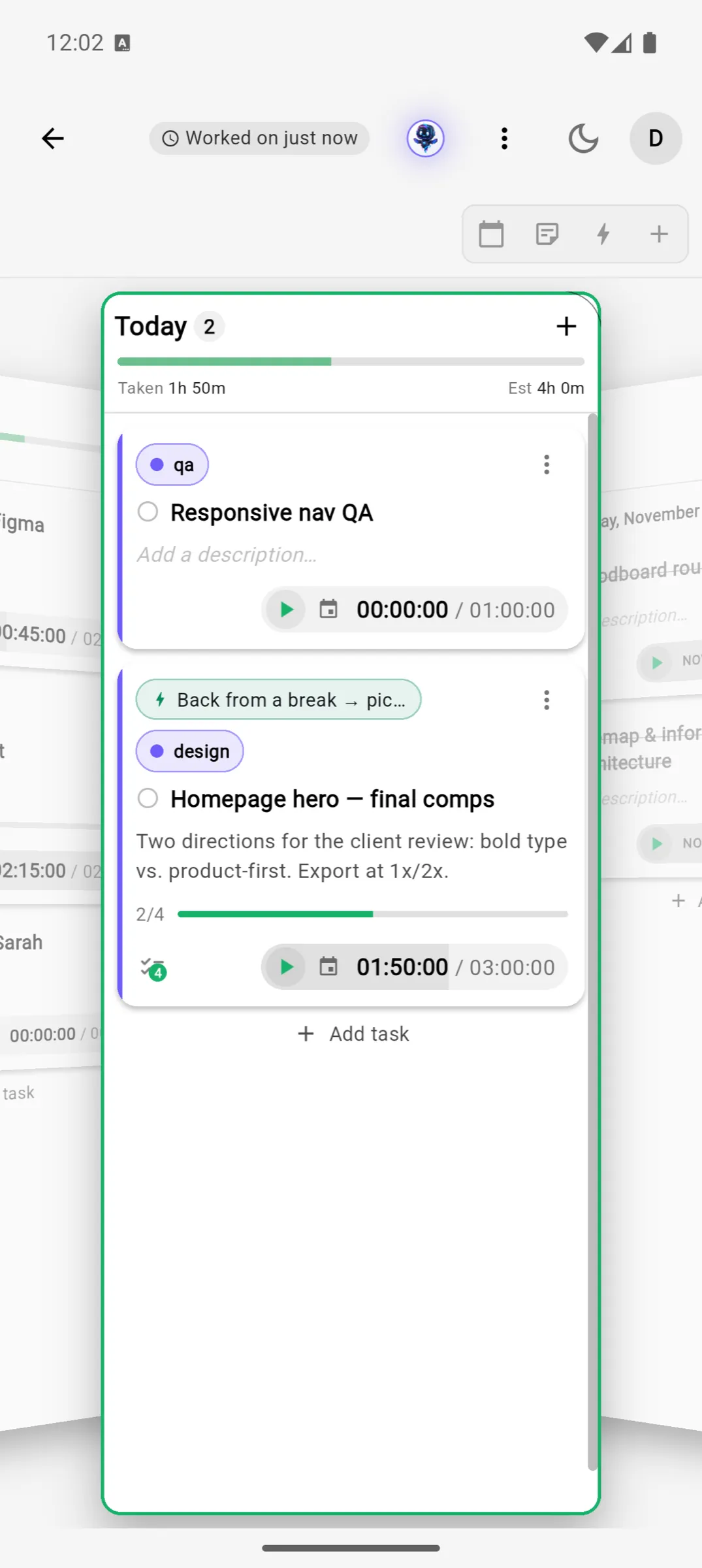
Press play on a card and the timer moves out of the app and onto your screen — in the notch, in the menu bar, or floating above whatever you’re working in. Your focus playlist starts with it. Hit Done and pull the next card without switching windows.
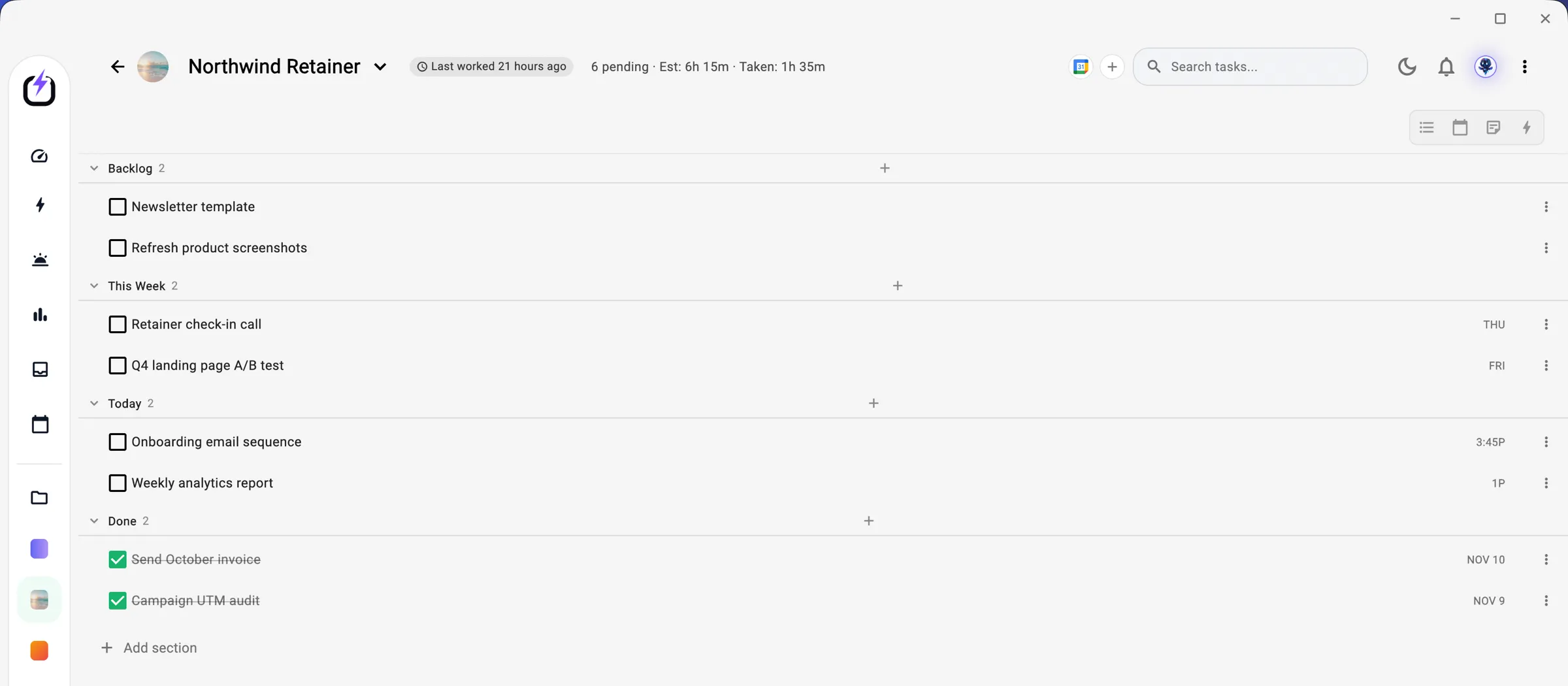
Switch anytime with one click — try them here.
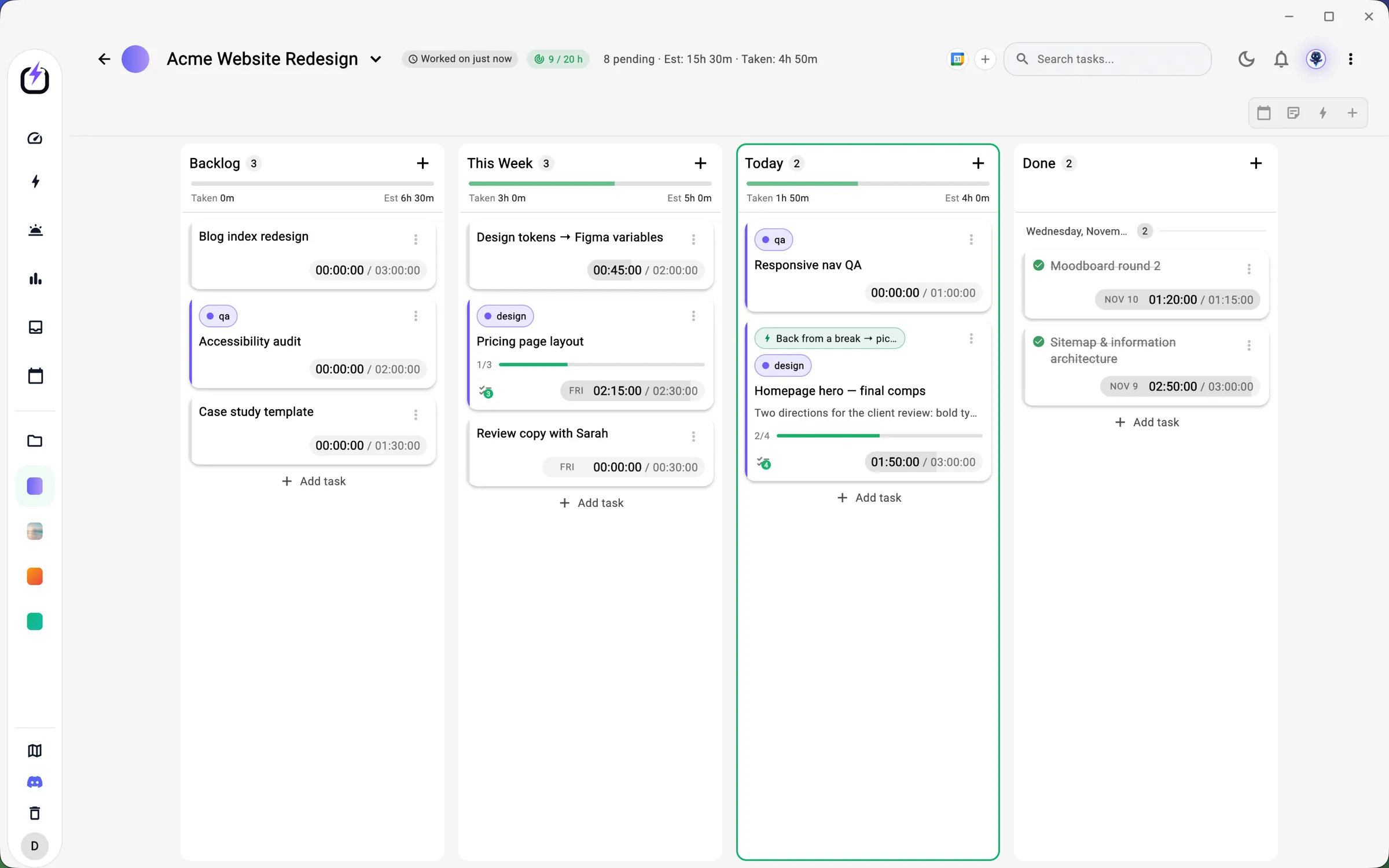
Acme Website Redesign
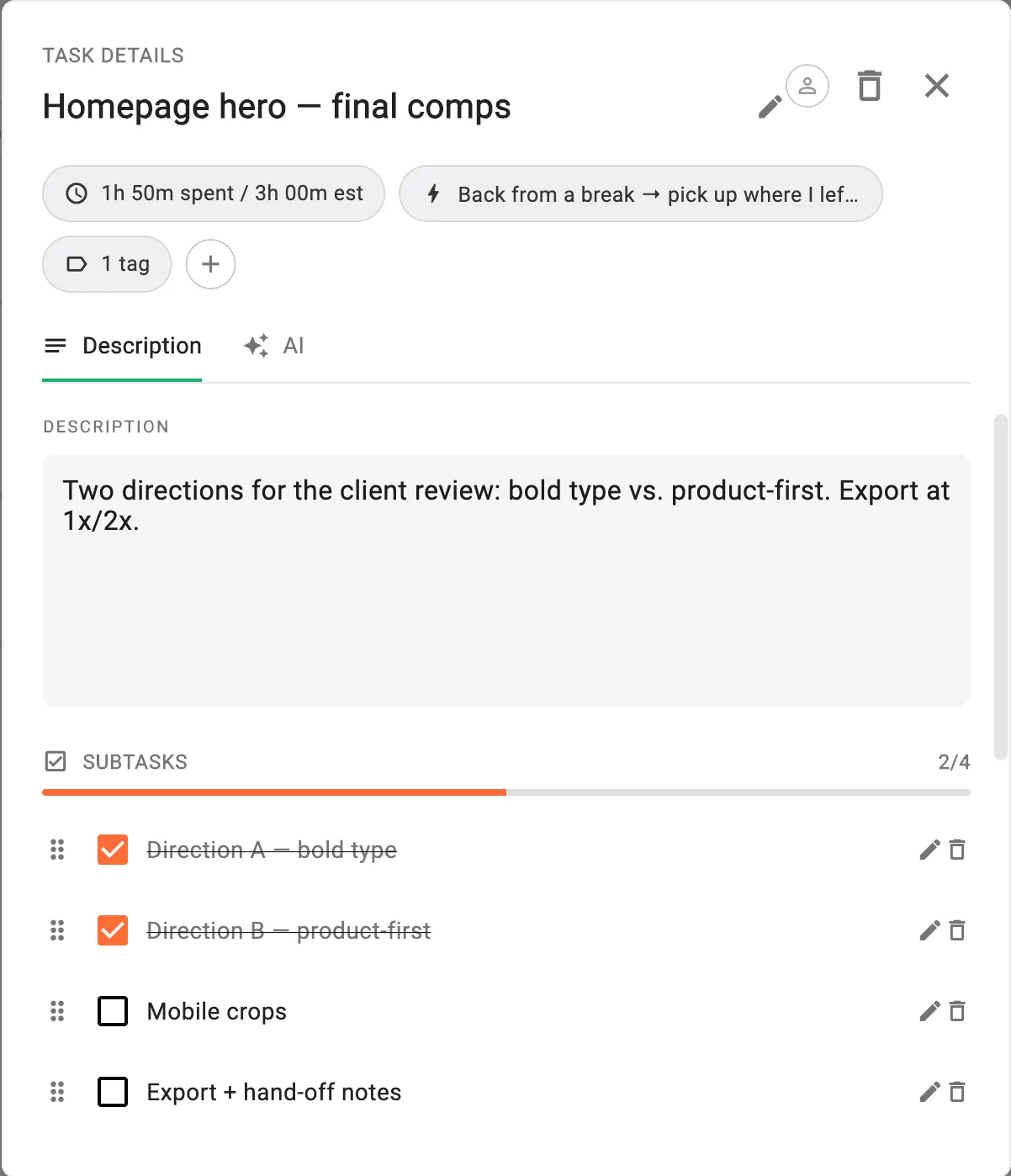
Homepage hero — final comps
Keep-ups
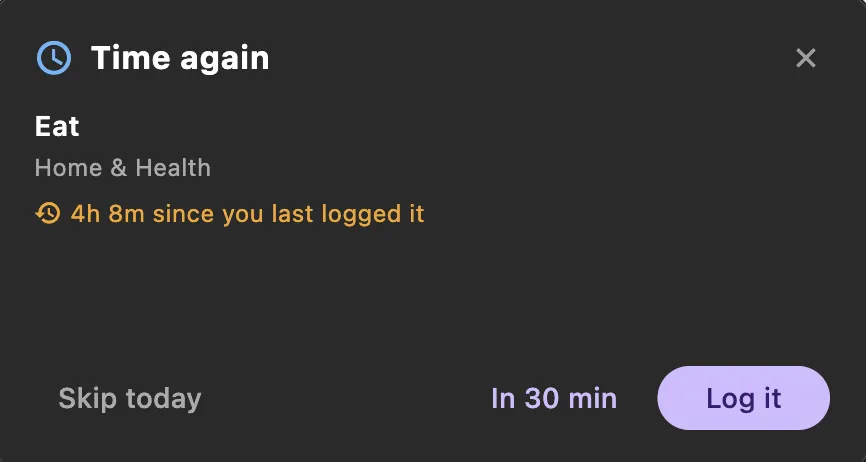
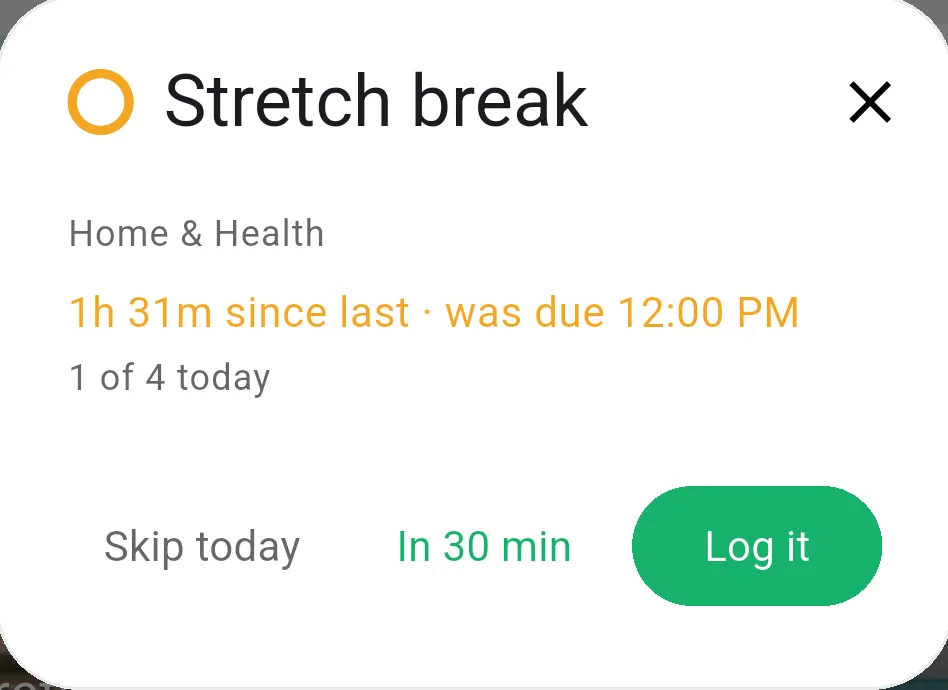
Eat. Drink water. Stretch. A keep-up card remembers when you last did it and asks again when it’s due — every few hours, or at set times of day. Log it from the nudge, your phone or your watch, and it stops asking once you’ve hit the day’s target.
Projects · Board or list
Lay each project out the way you think about it. Either way, every card shows the time it has taken against what you planned, every column adds up what’s left, and the project header knows how far you are from this week’s goal.
Day line Coming soon
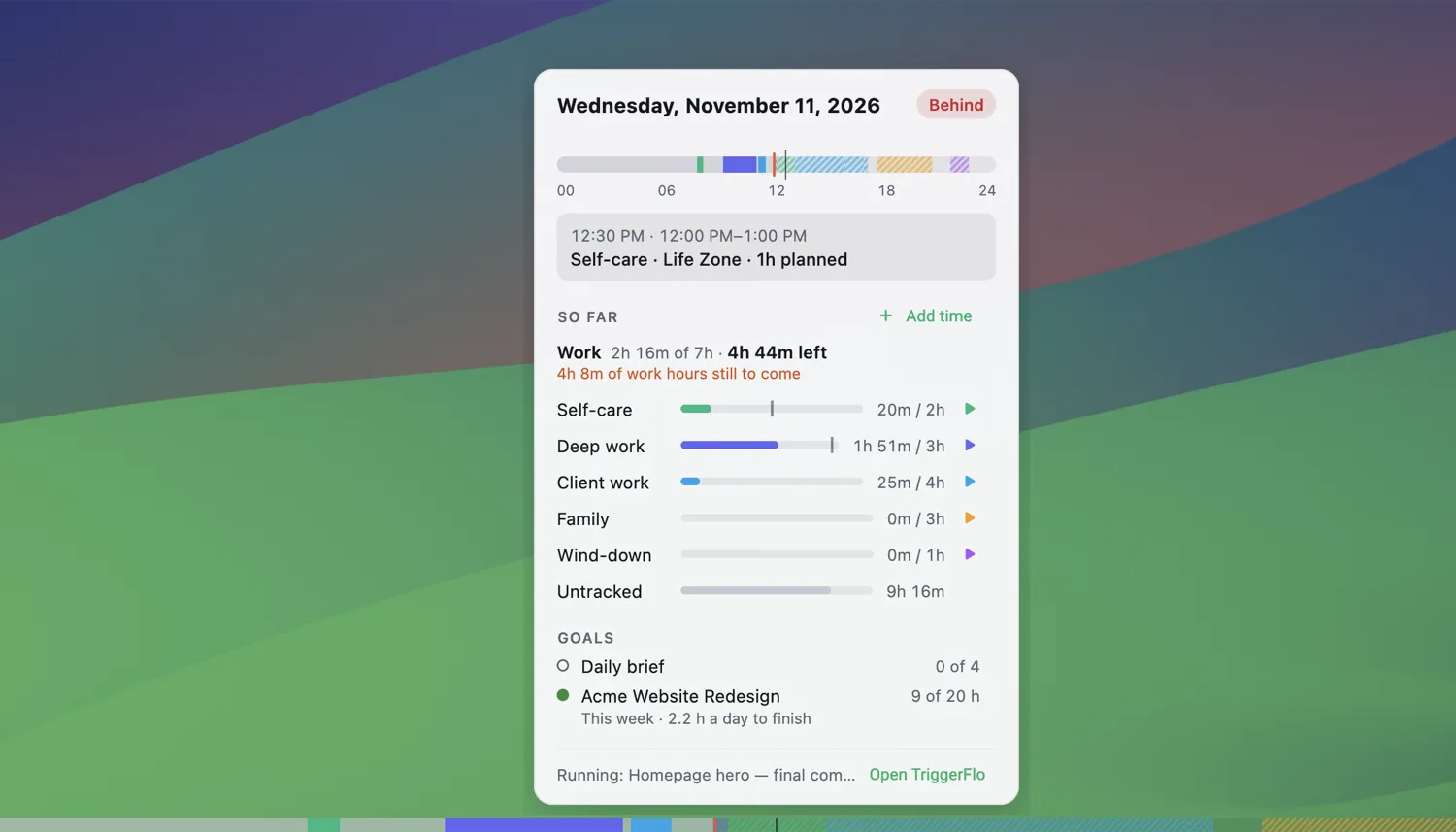
A thin line along the edge of your screen runs from midnight to midnight, coloured by what you did and what’s still planned. Hover it to see each Life Zone’s hours so far, how much work is left to log, and whether you’re ahead or behind — without opening anything.
Life Zones
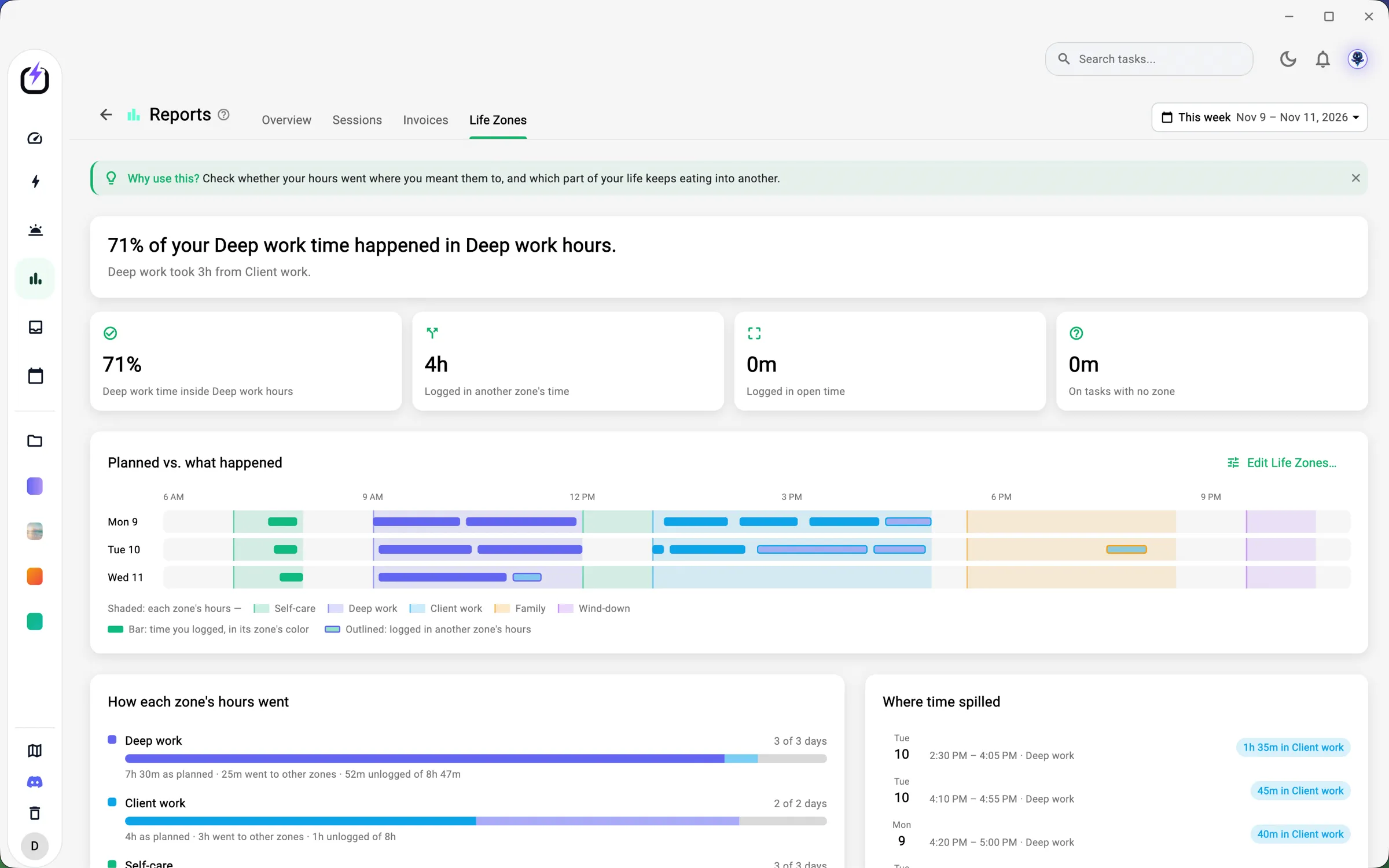
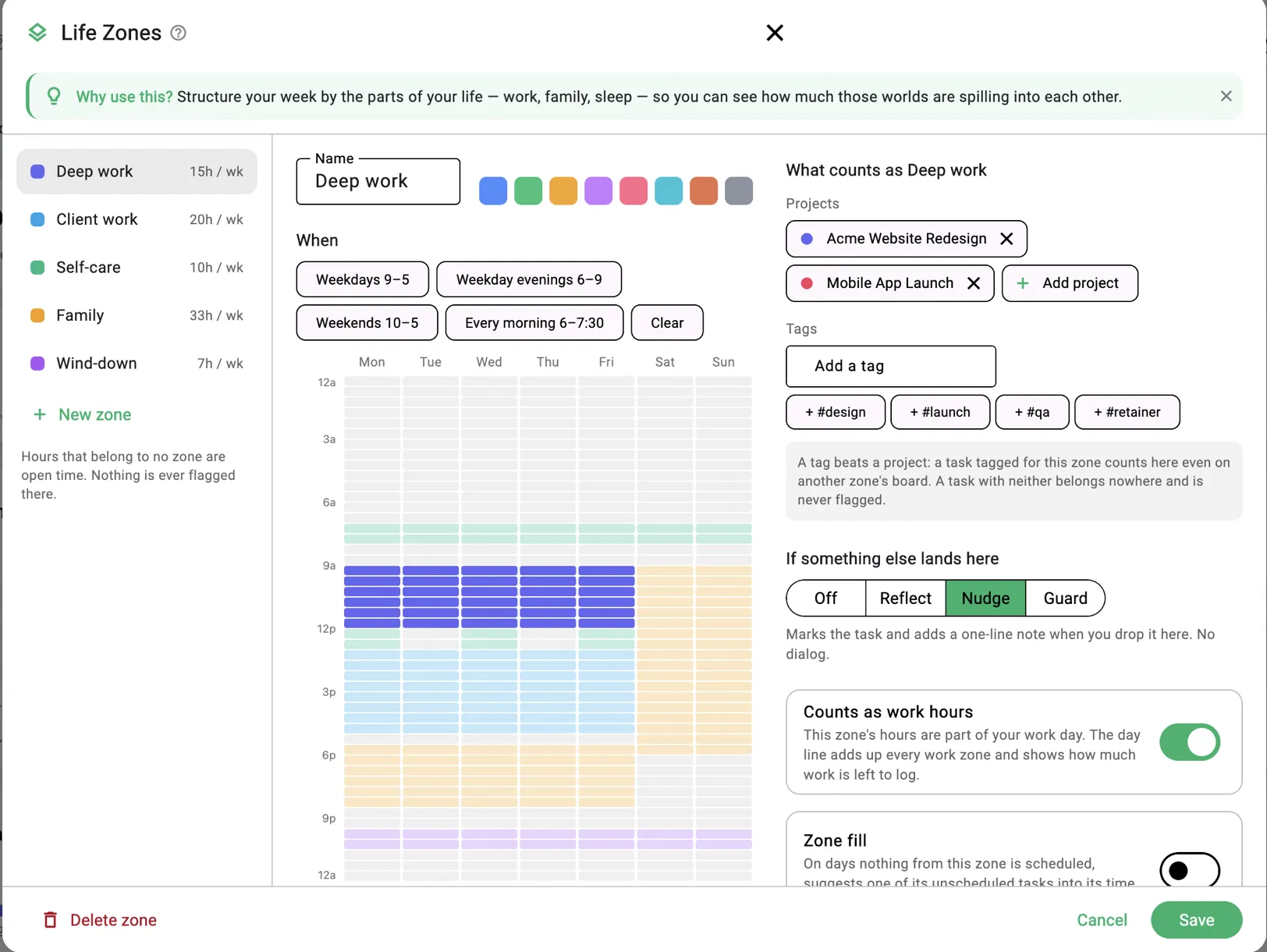
Tell TriggerFlo which hours are for what: deep work in the morning, clients after lunch, family in the evening. It shades them on your calendar, can nudge you when work drifts into family time, and at the end of the week shows what you planned against what actually happened.
Reports · Dashboard
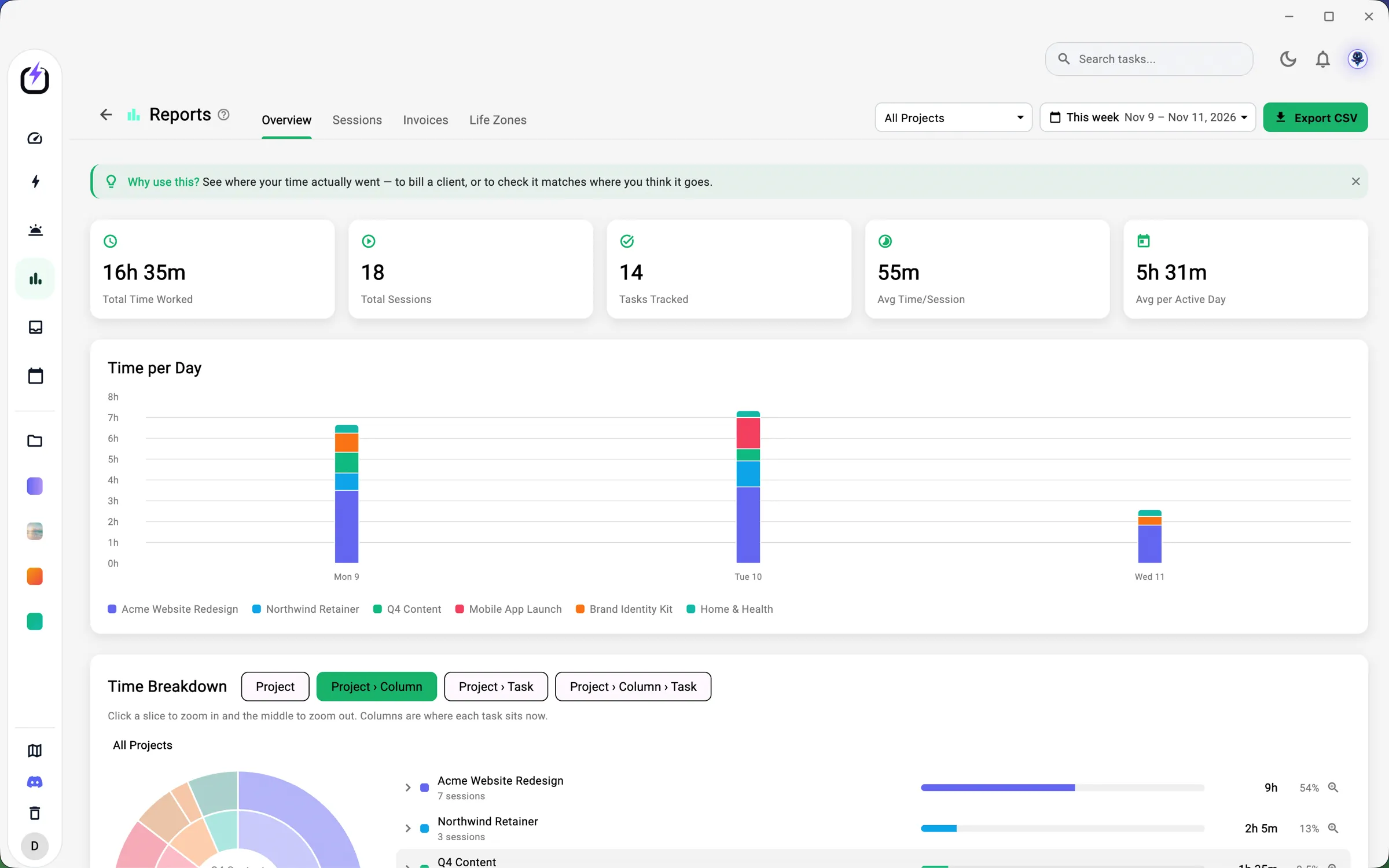
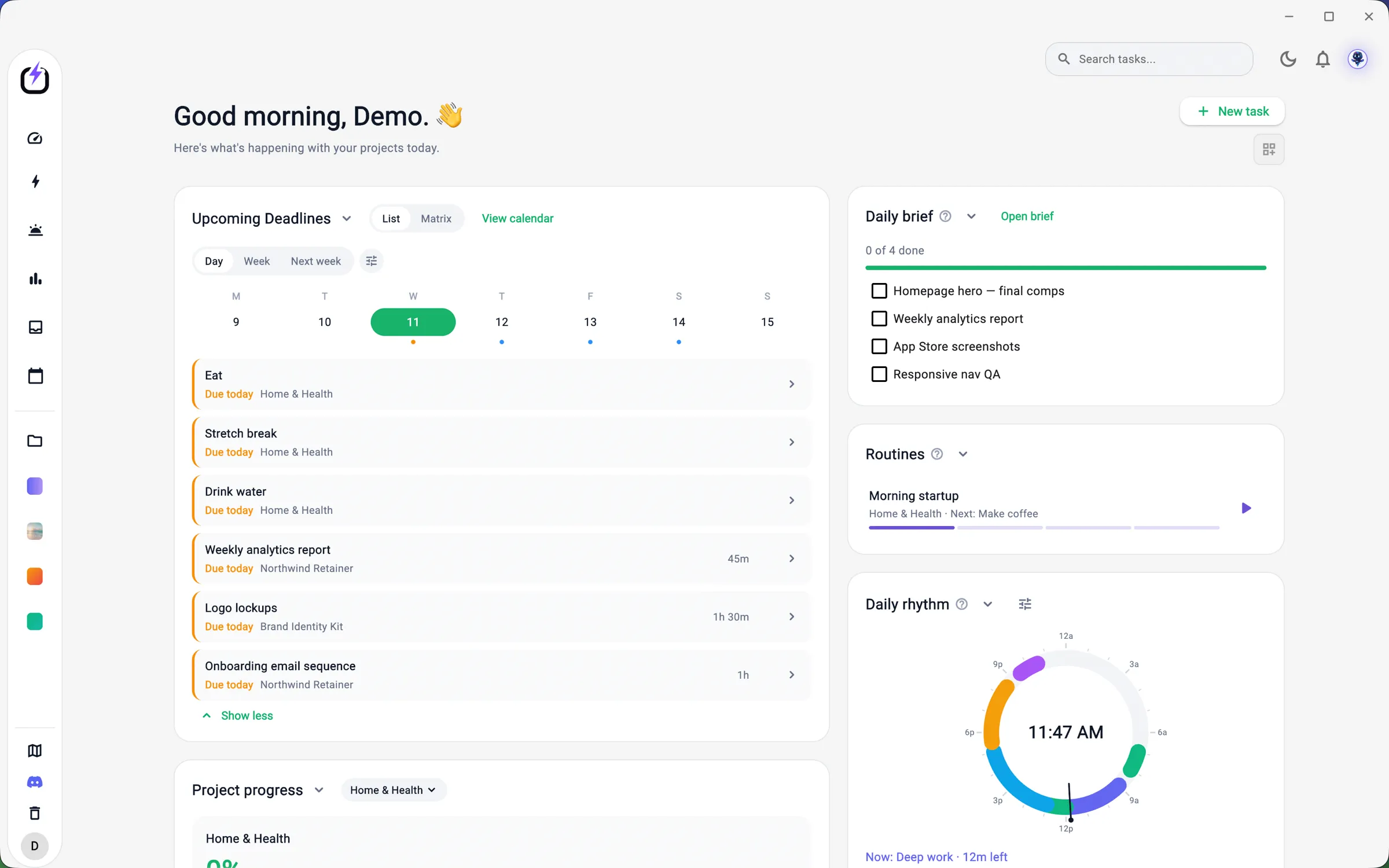
Every timer you ran adds up to a picture of your week: time per day, per project, per column, per task. The dashboard puts deadlines, today’s brief, routines and your daily rhythm on one page — and the brief’s Plan tomorrow tab closes the loop.
Every screen you look at
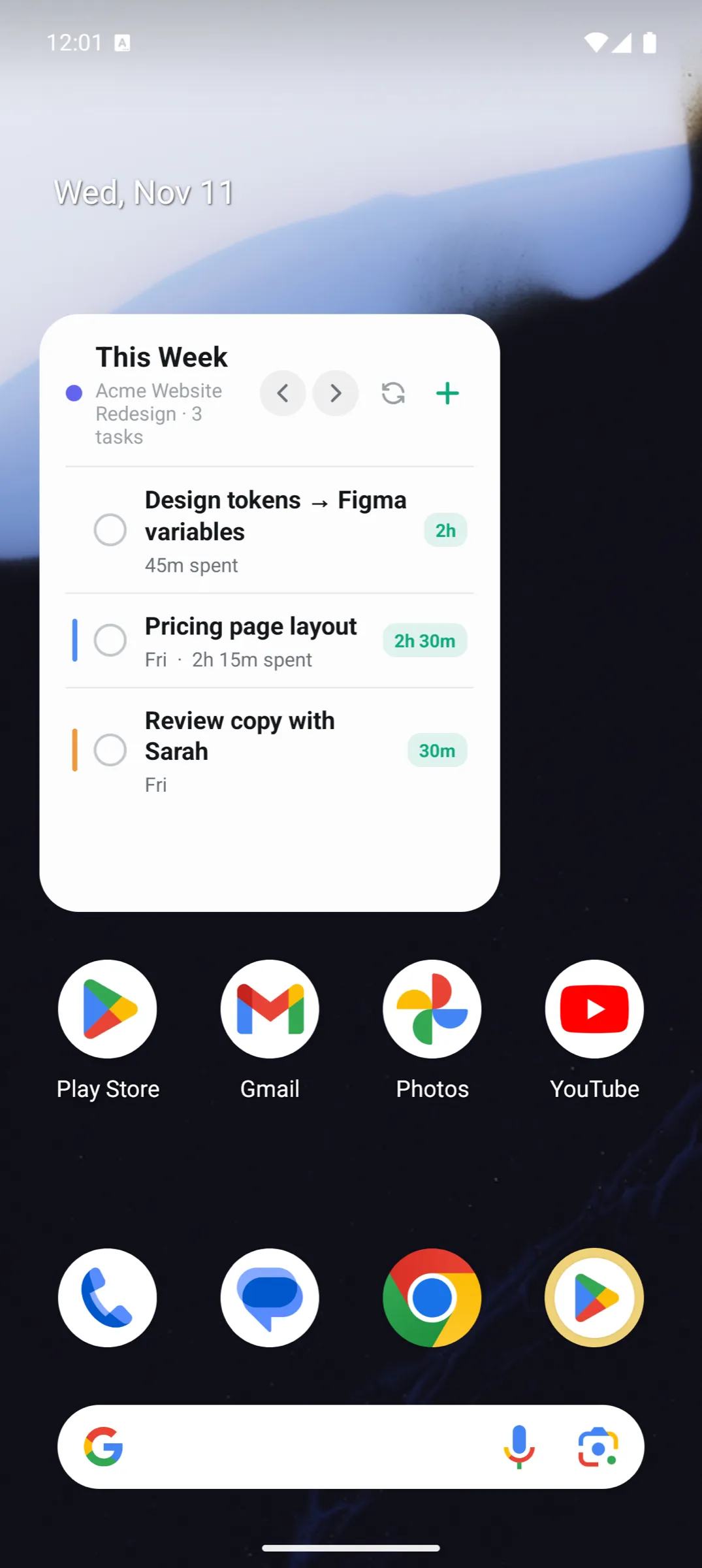
One account, live on macOS, Windows, Linux, iPhone, iPad, Android, Apple Watch and Wear OS. Home-screen widgets show a column, a board, your day or the running timer, and update with the app closed.
Settings · Make it yours
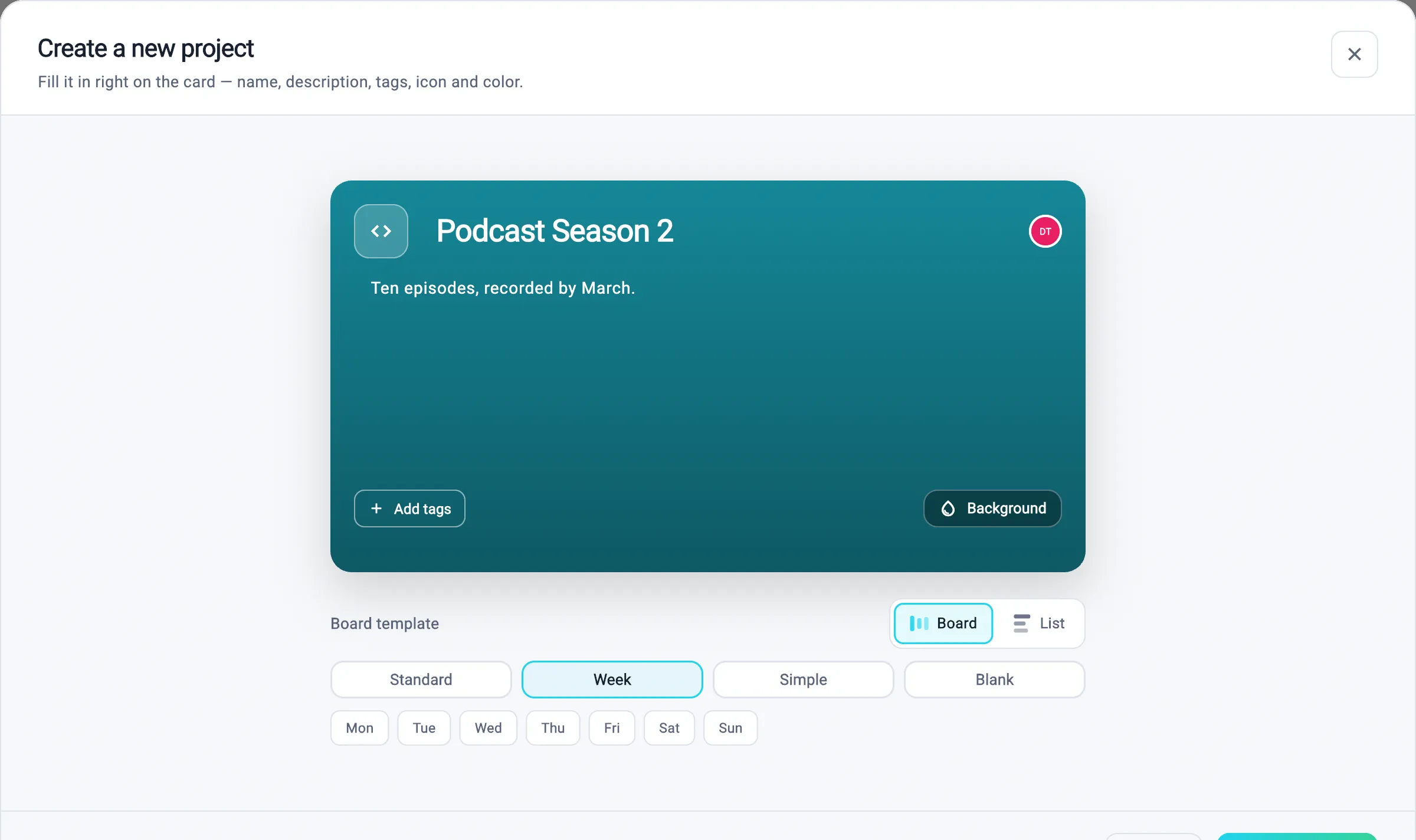
Set a project up right on its card — name, description, cover and icon — then pick a board or a list and a template to start from. Reorder the timer’s buttons, or turn on a focus chime that rings a singing bowl every 20 minutes.
The rest of a serious task manager and time tracker.
Type it, or say it: a spoken brain dump comes back as separate tasks, ready to sort.
A deck of steps played one at a time — a morning startup, a weekly review.
Every tracked block, listed and editable. Fix the timer you forgot to stop.
Tracked hours and per-card rates become line items. Export PDF or CSV.
Share a project, assign cards, or publish a read-only board with upvotes.
Google Calendar both ways; Todoist, Linear and Google Tasks imported and kept in sync.
Spotify, Apple Music, or any media app, controlled from the timer.
Flo, the in-app assistant — and an MCP server for Claude, Cursor and friends.
Start timers, log keep-ups and step through routines on Apple Watch and Wear OS.
What people are saying
The floating timer that stays on top of everything is a game-changer. It actually tracks time linked to the task, so nothing gets lost. Turning tracked hours straight into an invoice without touching a spreadsheet is huge for freelance work. Syncs across phone, Mac, and web seamlessly.
Great app, great dev! It gets you into a state of flow to sit down, focus, and get all your tasks done. A productivity app that actually works, unlike the competition’s.
Really liked this idea. Very versatile app — loved how efficient it is for team collaboration.
I find the app really well-suited for improving productivity and having more control over the independent, freelance work you do.
The dev is v responsive and available, so any bug reports or feature reqs are promptly attended to.
Free forever for up to 3 projects, with triggers and Life Zones included. Upgrade when it earns its keep.
New features and fixes as they ship on desktop and mobile. No spam, unsubscribe any time.